For most people, Canva. Its free plan includes over a thousand collage templates, free photo grids, freeform layouts, text, basic elements, and watermark-free PNG or JPG downloads when every element used is free. Premium elements show a watermark unless bought individually or unlocked by upgrading, which Canva labels clearly, so a careful user can build and download a polished collage for nothing.
Canva is not the right answer for everyone.
If your photos already live in Google Photos, Google Photos is faster and equally watermark-free. If you want to work offline on a desktop, PhotoScape X fits better. If you mainly design on a phone with lots of stickers, Picsart or PicCollage feels more natural, with the trade-off that both add a watermark to free exports.
| Tool | Best use case | Free version | Watermark on free export | Platforms | Main free-plan limit |
|---|---|---|---|---|---|
| Canva | Templates and design | Yes | None with free content | Web, Windows, macOS, Android, iOS | Premium elements are paid |
| Adobe Express | Social graphics | Yes | None with free content | Web, iOS, Android, iPad | Best stock and fonts need Premium |
| Google Photos | Your own library | Yes | None | Web, Android, iOS | Few design options |
| Fotor | AI-assisted online collages | Yes | None (official page) | Web, Windows, macOS, Android, iOS | HD and premium assets need Pro |
| BeFunky | Dedicated collage layouts | Yes | Not fully verified | Web, mobile | Premium layouts and wizard need Plus |
| Pixlr | Browser editor with layouts | Yes | None | Web, Android, iOS, desktop | Ads, 10MB upload cap |
| Picsart | Mobile creative collages | Yes | Yes, small Picsart mark | Web, Android, iOS, desktop | Watermark, export caps |
| PicCollage | Freeform mobile collages | Yes | Yes, small logo | iOS, Android, Windows | Watermark and ads unless paid |
| FotoJet | Simple web collages | Yes | None (reported) | Web, desktop app | Premium templates need Plus |
| PhotoScape X | Offline desktop collages | Yes | None | Windows, macOS | No web or phone version |
Best for. A wide choice of templates without design skills.
Free-plan details. Over a thousand collage templates, millions of free stock photos and graphics, text and basic elements, and watermark-free PNG or JPG downloads when every element is marked free.
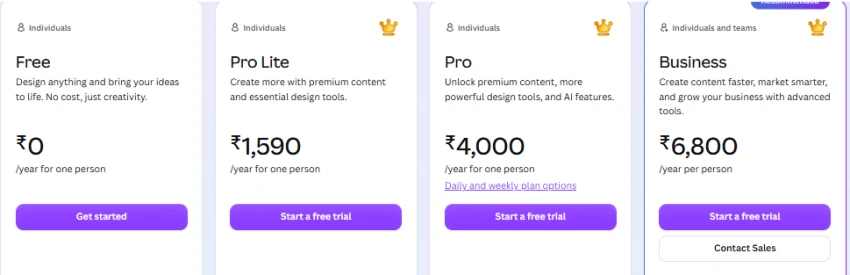
What works well. The editor is easy to learn and the output looks professional. Cross-device sync moves work between laptop and phone.
Limitations. Premium templates, some stock, and one-click background removal are paid, and using a premium element adds a watermark until you buy it or upgrade. A free Canva account is required.
Who should use it. The default for beginners, social posts, and anyone who wants flexibility in one place.
Official website. canva.com/create/collages
Best for. Template-led graphics with Adobe stock and fonts.
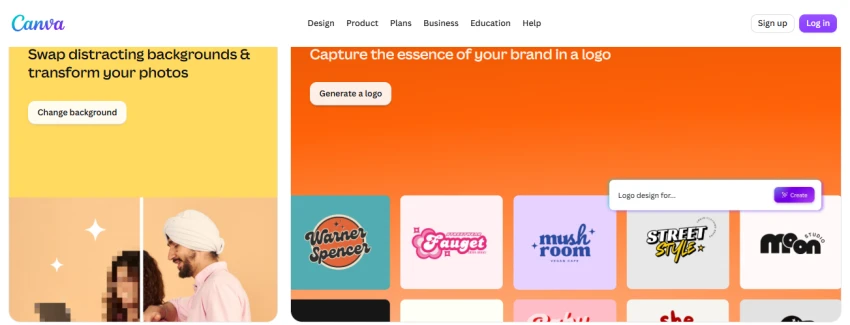
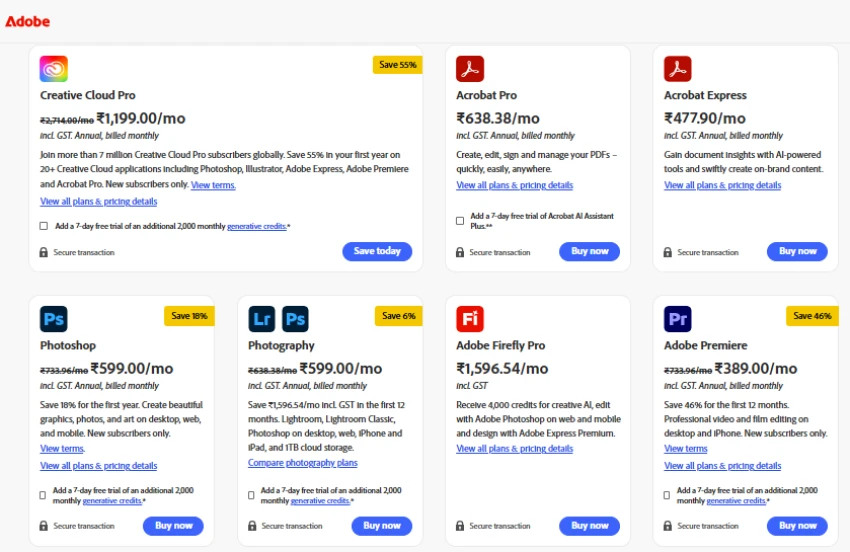
Free-plan details. Adobe’s help pages list the free plan as free to use with over 100,000 templates, more than 4,000 Adobe fonts, over a million royalty-free Adobe Stock assets, and 5GB of storage, on web, iOS, Android, and iPad. Projects save watermark-free, and a watermark only appears when premium content is present.
What works well. Large free template and font libraries, tidy exports, strong text handling. The free plan is a real plan, not a trial.
Limitations. The best stock, premium fonts, and some features sit behind Premium, which starts as a 30-day free trial. An Adobe account is required.
Who should use it. A strong Canva alternative, especially if you want Adobe fonts and stock or plan to make video collages.
Official website. adobe.com/express/create/collage
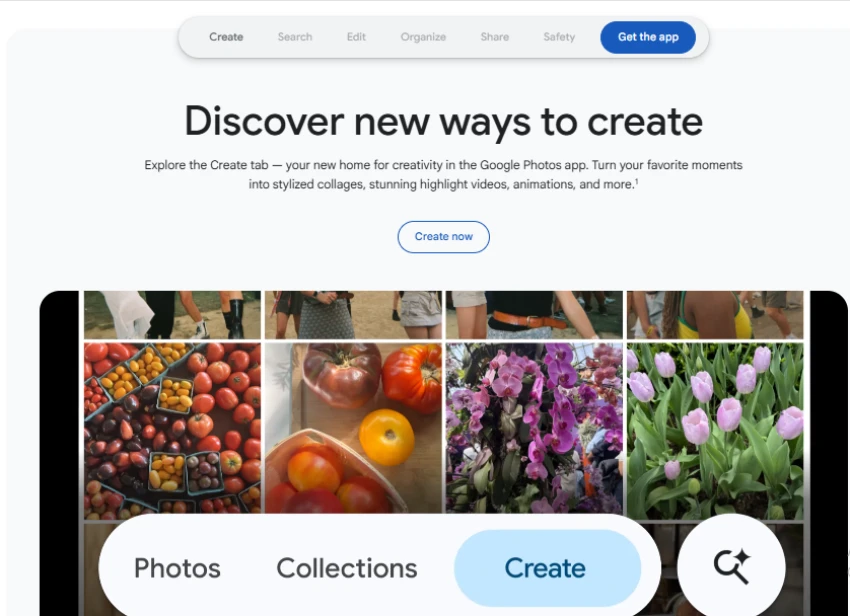
Best for. Quick, watermark-free collages from photos you already took.
Free-plan details. Entirely free with a Google account. Combine roughly two to nine photos per collage, with no watermark and no payment.
What works well. A 2026 update rebuilt the collage editor with template categories (Grid, Film, Classic) and adjustable borders. You can add or remove photos directly in the editor without starting over, and share straight to Instagram or WhatsApp from a new Share button.
Limitations. Fewer creative options than Canva or Picsart. Not meant for heavy text, stickers, or branded layouts.
Who should use it. Anyone who stores photos in Google and wants a simple arrangement in under a minute.
Official website. photos.google.com
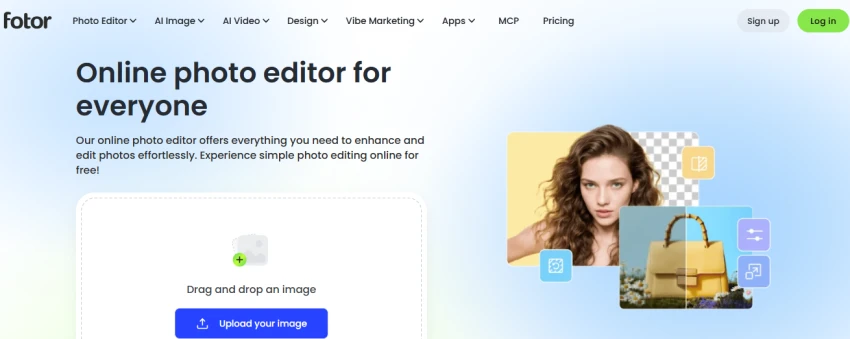
Best for. Fast online collages with some AI help and no watermark.
Free-plan details. Fotor’s collage page states the tool is free to use, exports without a watermark, and supports a large number of photos. Classic grids, freeform, stitching, and themed layouts are available, with controls for ratio, spacing, margins, corner radius, and frame count.
What works well. Speed and a clean, watermark-free export. Layout controls are flexible.
Limitations. Free exports are generally standard resolution. HD downloads, premium templates, and batch editing are reserved for Pro. Saving usually asks you to sign in.
Who should use it. A good pick if you want a quick online grid without a watermark and do not need print-size files.
Official website. fotor.com/collage
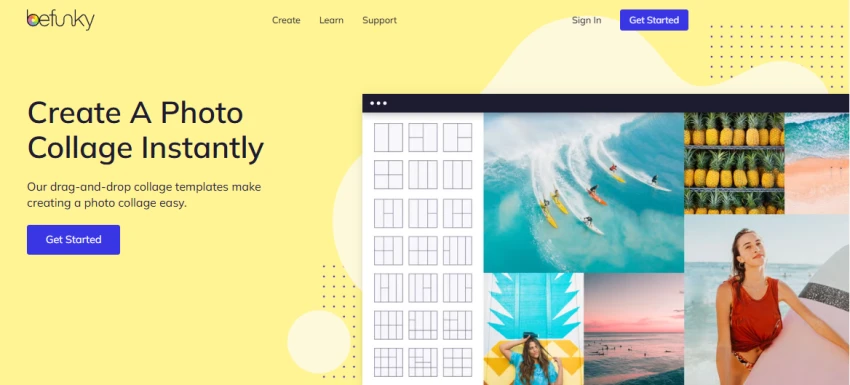
Best for. Artistic, non-grid layouts.
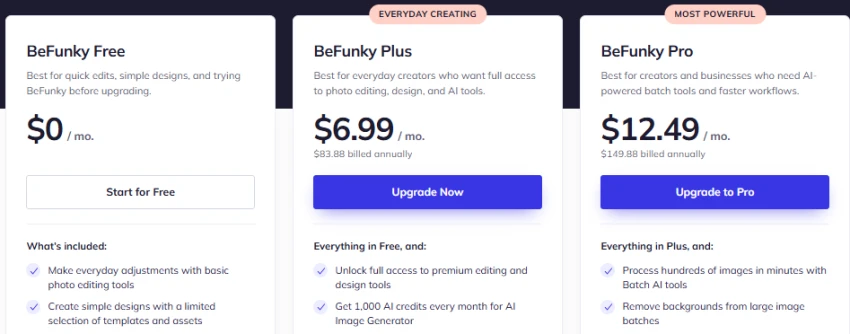
Free-plan details. Basic editing, a limited set of collage layouts, and standard templates. The full Collage Wizard, premium design templates, and the Watermark Manager are part of BeFunky Plus (around $11.99 per month, or about $6.99 per month billed annually).
Watermark note. Sources conflict. Some say basic free exports carry no BeFunky branding, others say the free tier adds a watermark to every export. Treat a clean free export as something to confirm in the app before relying on it.
What works well. Overlapping and scattered “Artsy” layouts, plus a Collage Wizard that auto-arranges a batch of photos.
Limitations. The most useful layouts and HD output are Plus features.
Who should use it. Worth trying if grid collages feel too rigid and you want scrapbook-style arrangements.
Official website. befunky.com/features/collage-maker
Best for. Browser-based editing with layout control.
Free-plan details. Pixlr X for quick design and Pixlr E for Photoshop-style layer work, both free in the browser. Exports are watermark-free. The free tier has a 10MB file cap and a limited AI credit pool, and is ad-supported.
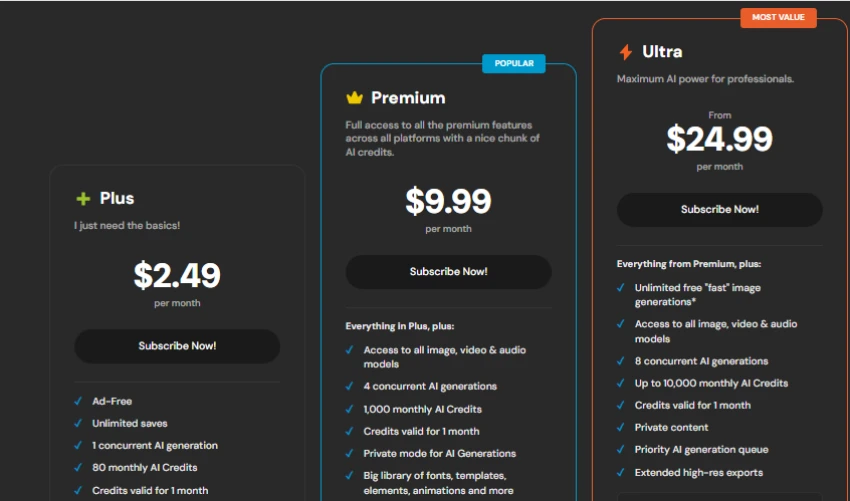
What works well. Real layer tools in a browser set it apart from simple grid makers. Background removal runs on the free plan and produces a watermark-free transparent PNG.
Limitations. Less template-driven than Canva, so collages take a little more manual work. Heavy AI use runs out of free credits, and large files hit the upload cap.
Who should use it. More editing control than a template tool, still a clean, free export.
Official website. pixlr.com
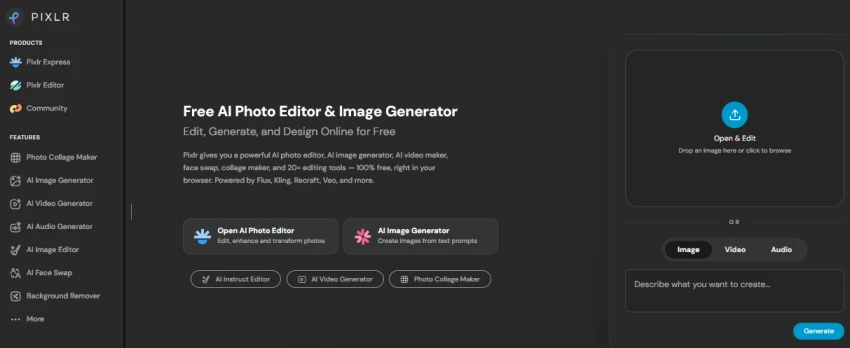
Best for. Mobile-first creative collages with large sticker and effects libraries.
Free-plan details. Essential tools, a library of AI effects, and up to about five exports per day. The free plan adds a small “Picsart” text watermark, usually in a corner, and limits AI credits. A paid plan unlocks unlimited watermark-free exports.
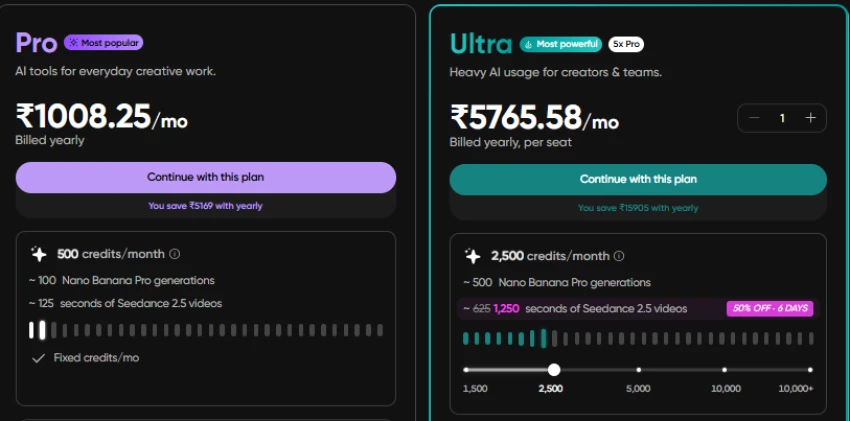
What works well. The sheer range of stickers, effects, and pre-sized social templates makes playful collages fast.
Limitations. The free watermark is the main drawback for anything you want to publish. Reviewers also note reduced export quality and frequent upgrade prompts on the free tier.
Who should use it. Casual, decorative phone collages, when the watermark does not matter or you are willing to pay to remove it.
Official website. picsart.com
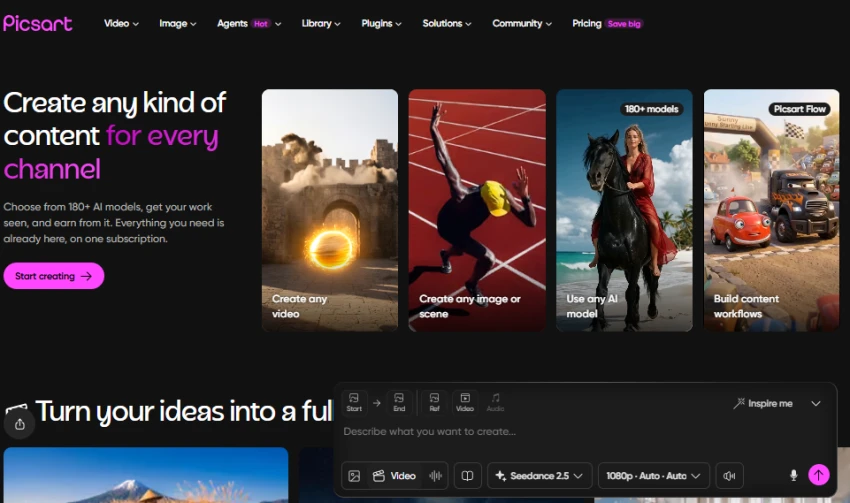
Best for. Freeform collages made quickly on a phone.
Free-plan details. Free with ads. Exports include a slight watermark. A one-time in-app purchase of about $1.99 removes the watermark and ads. Premium (around $4.99 per month) removes the watermark and unlocks the full sticker and font library.
What works well. Freeform editing lets you overlap and rotate photos by hand, which suits scrapbook pages. The sticker selection is large.
Limitations. Free logo and ads are the trade-off. The richest content is paid. App-first, no full web editor.
Who should use it. Casual personal collages on a phone where a tiny logo is acceptable or cheaply removed.
Where to get it. PicCollage on the App Store and Google Play.
Best for. Simple web collages, including 3D styles.
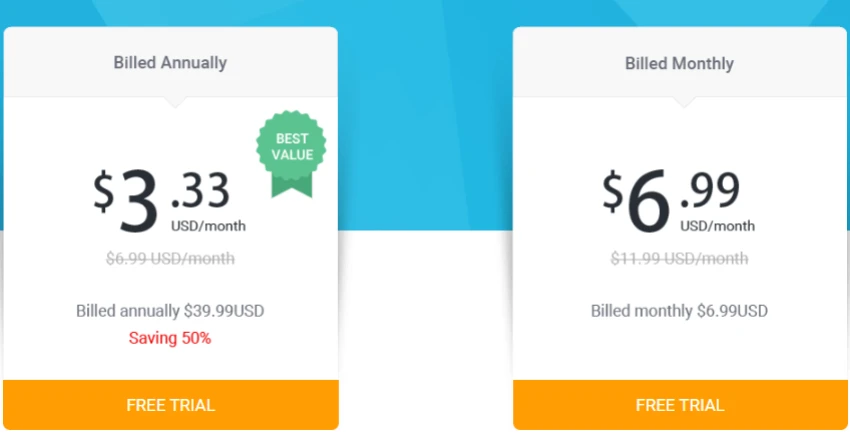
Free-plan details. More than 800 layouts, watermark-free exports on the free plan, with Plus from roughly $3.33 per month billed annually and a 7-day trial. Grid, artistic, and 3D arrangements are included free.
What works well. Quick setup. The 3D and artistic frames are more distinctive than plain grids.
Limitations. The newest templates are Plus-only. The editor is lighter than Canva or Fotor for detailed work. Saving may prompt a sign-in.
Who should use it. Fast, watermark-free web collage with a few creative frame styles.
Official website. fotojet.com
Best for. Offline desktop collages.
Free-plan details. Fully functional and free on Windows and macOS for collages, with no watermark and no account. An optional Pro version adds extras, but is not needed for collages.
What works well. Runs offline, keeps photos on your own machine, handles large or high-resolution images, and never watermarks.
Limitations. No web or phone version. Collage layouts are more utilitarian than Canva’s or Fotor’s. Interface takes a little longer to learn.
Who should use it. Desktop users who want to work offline or keep photos off the cloud.
Official website. photoscape.org
Best overall. Canva.
Best for beginners. Canva or Google Photos.
Best for social posts and stories. Canva and Adobe Express, which include correctly sized templates and watermark-free exports when using free content. Picsart fits more decorative posts if its watermark is acceptable.
Best for family photos, travel, and personal albums. Google Photos.
Best for scrapbook-style designs. BeFunky for artsy overlapping layouts, PicCollage for hand-arranged freeform pages.
Best for quick phone collages. Google Photos for arranging your own shots, Picsart or PicCollage for sticker-heavy designs with a free-tier watermark.
Best for business or branded content. Canva. Brand kit and background removal are paid, but the free tier covers most of the work.
Best for desktop or offline editing. PhotoScape X, with Pixlr as a browser alternative that still exports clean.
Best for avoiding watermarks. Google Photos and PhotoScape X never watermark. Canva, Adobe Express, Fotor, and Pixlr also export clean when premium content is avoided.
Best for avoiding an account. PhotoScape X needs no account because it runs locally. FotoJet and BeFunky let you start a basic collage without signing up, though downloading may still prompt a sign-in. Google Photos requires a Google account.
Templates and assets. Basic templates and grids are free. New or premium templates and most stock photos are paid. Canva and Adobe Express label premium assets and switch to a watermark if one is used.
Watermarks. Google Photos and PhotoScape X never watermark. Canva, Adobe Express, Fotor, and Pixlr only watermark when premium content is present. Picsart and PicCollage watermark every free export by default.
Export quality. Fotor reserves HD downloads for Pro. Several free web tools export at standard sizes, which matters for print.
Advanced editing. Background removal, AI effects, and batch processing are usually paid. Pixlr is the exception on background removal, offered free and watermark-free, while its heavier AI tools use limited free credits.
Brand kits, storage, and collaboration. Paid in Canva and Adobe Express. Rarely missed for a one-off personal collage.
Start with how many photos you have and how much layout control you want. A simple grid of four photos is a different job from a fifteen-photo mosaic. Google Photos handles the first, Canva, Fotor, or PhotoScape X give more control for the second.
Think about the end use. Social media is fine at standard resolution on almost any free tool. A printed gift or poster needs a high-resolution, watermark-free download, which usually means avoiding premium content in Canva or Adobe Express, using PhotoScape X, or upgrading a tool like Fotor for HD.
Check the watermark rule before investing time. Picsart and PicCollage watermark every free export. Decide up front whether that is acceptable.
Match the tool to the device. On a phone, Google Photos, Picsart, and PicCollage feel native. On a desktop, PhotoScape X and the browser tools are more comfortable. Canva and Fotor cover both.
For privacy, a local desktop app like PhotoScape X keeps images off the cloud. Most web and mobile tools require upload and sign-in before download.
These steps follow Canva’s free browser editor.
Canva is the best free collage maker in 2026. Its free plan is complete enough to design, edit, and export a clean collage without paying, and it works on nearly every device.
The strongest alternatives depend on priorities. Google Photos is faster for automatic collages from an existing library and never watermarks. Picsart and PicCollage suit sticker-led mobile design if the free-tier watermark is acceptable. PhotoScape X is the clearest choice for offline desktop work and high-resolution files. Adobe Express is a close second to Canva if Adobe fonts and stock matter.
Related guides and breakdowns from the same category.


Join the conversation
No comments yet
Start the conversation on The Best Free Collage Maker and How to Choose One.