No reviews yet
Be the firstStep 1: Open the Image Generator
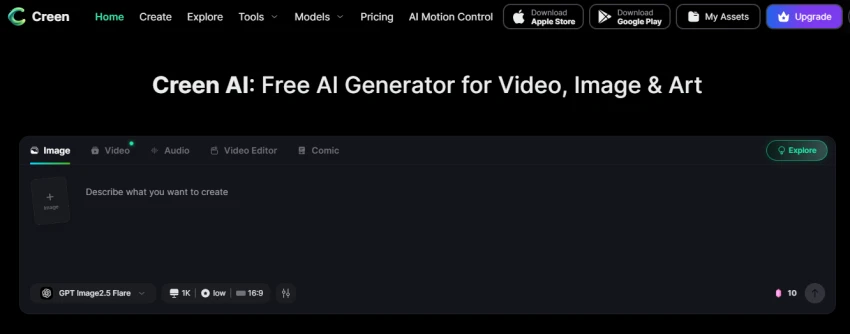
Select the Image option and enter a prompt describing the image you want to create.
Step 2: Explore Generated Content
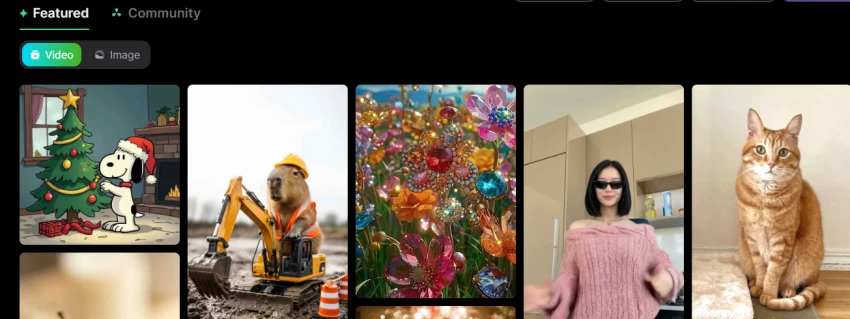
Browse the featured section to view different image and video examples created with Creen AI.
Step 3: Create a Video
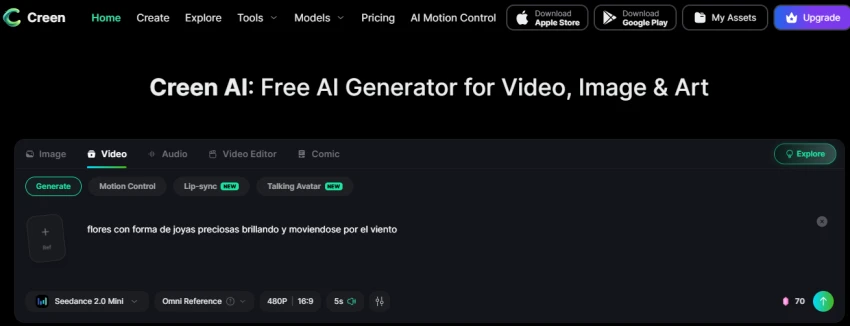
Open the Video section and enter a prompt such as:
“flores con forma de joyas preciosas brillando y moviéndose por el viento”
Choose the model, resolution, aspect ratio, and video duration.
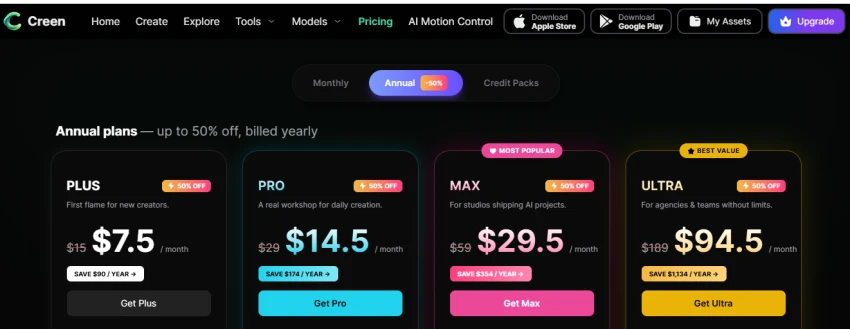
Step 4: Check the Pricing Plans
Click the green generate button to continue. It takes you to the Pricing page, where you can choose from Plus, Pro, Max, or Ultra plans.
Supports image, video, audio, comic, and video editing tools in one workspace.
Offers multiple video options such as Motion Control, Lip-sync, and Talking Avatar.
Video generation includes adjustable duration, resolution, and aspect ratio.
Video generation uses more credits than image generation.
The generate button can lead directly to the pricing page when credits or access are limited.
No reviews yet — be the first to share your experience.
Be the first to share an honest, verified review of Creen AI.
Other tools in the same category worth a look.

Welcome 6 frosting.ai
Be the first to review
Free AI Image Creator Online, create unlimited AI images online in 2 s...
Be the first to review
Yours To Create
Be the first to review
Remaker AI - The Easiest Way to Recreate Any Image
Be the first to review
Create content that reflects your ideas.
Be the first to review
Stylar is your virtual dressing room
Be the first to review
Discover and Create AI Art
Be the first to review
Discover and Create AI Art
Be the first to review