No reviews yet
Be the firstUse Cases:
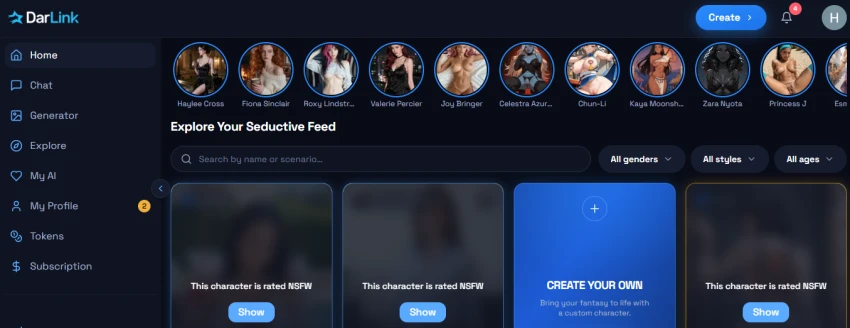
Step 1: Open Explore to browse available AI characters and use the search and filters to find a character.
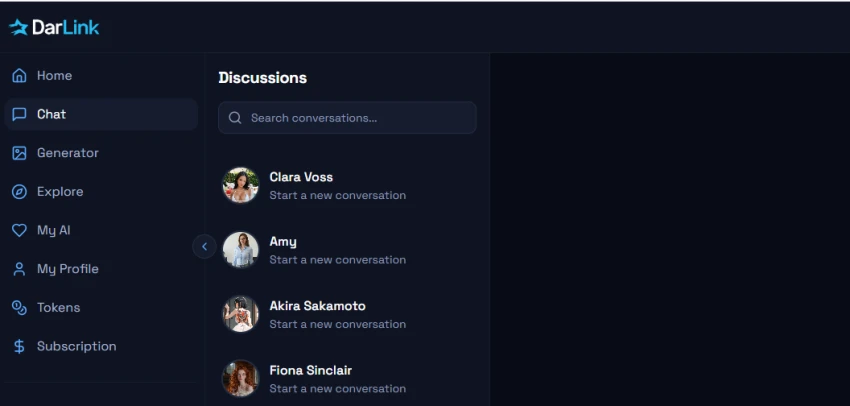
Step 2: Open Chat and select a character to start a conversation.
Step 3: Open Generator and choose Image or Video as the generation type.
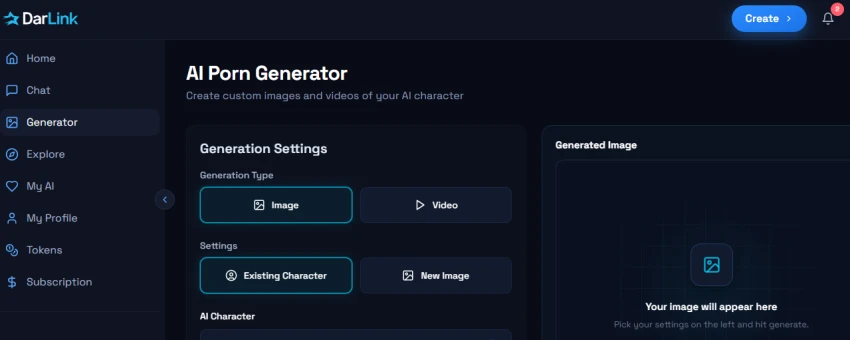
Step 4: Select an Existing Character or choose New Image to set up the generation.
Step 5: Set the required character and generation options, then generate the content.
Step 6: Review the generated result in the Generated Image section.
Explore includes character search plus gender, style, and age filters.
Chat keeps separate conversations for different AI characters.
Generator supports both image and video creation.
Existing characters can be reused when creating new visual content.
Image and video generation are separated into different generation modes.
New users may need to explore several sections before understanding the full workflow.
Generation options depend on selecting a character or image source first.
No reviews yet — be the first to share your experience.
Be the first to share an honest, verified review of Darlink AI.
Other tools in the same category worth a look.

AI companion with memory, personality, and emotionally engaging conver...
Be the first to review
Personalized AI Companions for Chat, Voice, Images, and Video.
Be the first to review
AI roleplay and companion platform for interactive character chats, im...
Be the first to review
AI companion platform for personalized conversations, characters, imag...
Be the first to review
Your Caring Uncensored AI Companion
Be the first to review
Chat with AI Characters and Create Personalized Roleplay Experiences.
Be the first to review
Chat with Your Favorite Characters and Create Personalized AI Companio...
Be the first to review
Create AI Images, Videos, and Virtual Characters from Your Ideas.
Be the first to review